It’s an old but very strong feature: you can include in your NAV database a view, a query, even an excel table, and you can refer to / use the data in this data source as if was a table inside NAV. So you can use data:
- across multiple companies,
- from external sources,
- without importing the data
And you can manipulate the data with normal NAV tools, you can access the records of the table (GET, SETRANGE, SETFILTER, FIND, .NEXT…), everything works like a charm.
Yes, you can even notify the underlying data.
Here’s how you do that:
Quickstart
- In the table designer, set the LinkedObject property to Yes
- List all the fields, exactly in the same order, exactly the way it looks like in your data source
- Save the table definition. Give it a name that matches your data source name.
- Enjoy.
Details
Ok, there are some details you might want to consider. Especially if you see some exotic error messages after trying the Quickstart points above.
- LinkedObject = Yes –> right after that you’ll see a new property, LinkedInTransaction.
- The LinkedInTransaction property must be set to No when the Microsoft Dynamics NAV table description refers to a view that depends on objects that are outside the current database or on a linked server.
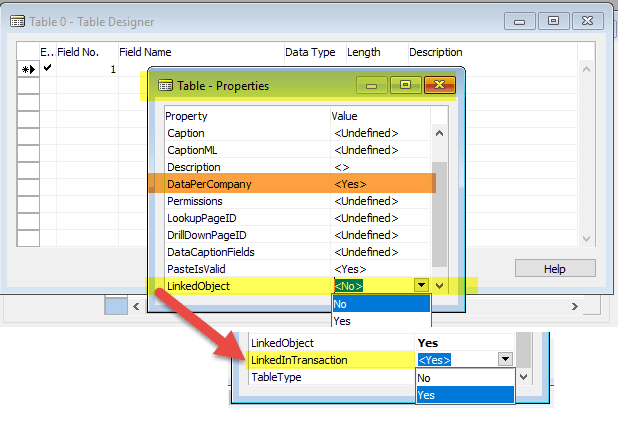
- You can update data. But if it’s not under the transaction control of NAV, you cannot roll back your changes. So be careful.
- You may not update data – depending on your security settings. Try and see it for yourself.
- Accessing objects in other databases or on linked servers may need extra precautions (security, transaction handling). More info here.
- The LinkedInTransaction property must be set to No when the Microsoft Dynamics NAV table description refers to a view that depends on objects that are outside the current database or on a linked server.
- So all the fields, even uppercase/lowercase should be appropriate. You never know – maybe you are referring to another database, where the policy is not so strict. Or they want even more.
- About the data types: make sure you choose data types that fit the contents, Including “Hello World!” in a Code field will lead to problems reading your data.
- Make sure the field lenghts in your data source match the definition,
- Do not define flowfields,
- Pick a primary key. This may or may not be easy. But if you want to process the data (even read it) in a deterministic way, you will want to have a good key. Well, in fact, you want to have the right key.
- Save the table definition. Sounds easy.
- But: in Navision, DataPerCompany = Yes –> you will need the linked object, for example, the view, created for each and every company :)<companyname>$<tablename> is the right format,
So you may want to set DataPerCompany to No if you want to make sure that your solution works under all circumstances.
- But: in Navision, DataPerCompany = Yes –> you will need the linked object, for example, the view, created for each and every company :)<companyname>$<tablename> is the right format,
- Enjoy. There’s not much to say … maybe there’s

 Hej, NAV!