Configuring your business central installation to work with the windows app

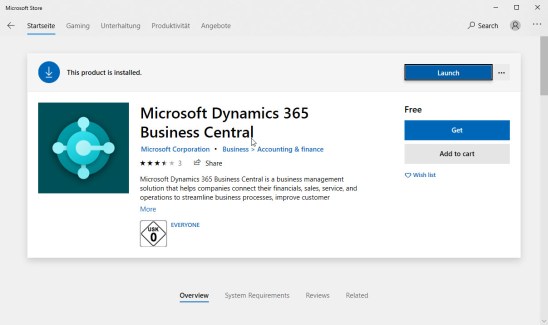
This article describes the configuration of a business central on-premise installation in a way, that it will be accessible without a browser, using the business central app from the MS App Store.

The quick steps are:

  1. Make sure your installation is accessible using SSL
    • Get an SSL Certificate (and now I don’t mean a self signed certificate)
  2. Install the Business Central application
  3. Launch the app, enter the url of your instance and your credentials. Enjoy.


Sounds easy, and in fact, it really is that easy. Let me explain in a bit more detail how you can make your life even easier.

Step 1: I solved this installing BC kinda’ in the cloud. It’s an on-premise installation on a virtual machine that is, in fact, in the cloud. It works like a charm, the following steps you’ll still need to carry out if you want your installation to be “part of your domain”:

  1. Add a CNAME record to your domain’s DNS record, pointing to the Azure name of the machine.
  2. Check out letsencrypt, a project that helps certifying the world. You’ll also need an automated way of requesting a certificate and configuring your IIS. I picked for that https://certifytheweb.com/, this really did work almost immediately….
  3. … in order to make it work, you have to make sure that your firewall allows connections from the outside world to your IIS
  4. Once finished installing, check out the bindings in the IIS manager. I’ve found that although I requested the SSL Certificate for the website of the Business Central installation, it still bound the certificate to the default website.

Step 2 – Installing the Business Central application and step 3 – entering your credentials should be straightforward.

2019-11-30_16-04-44


A real inventory table in NAV

invDid you ever wonder, why there is no real inventory table in NAV?

Of course, I know, I can still remember🙂

We have the Item Ledger Entries and the Warehouse Entries, and we have the flowfilters and we can always find out everything.

In “heavily used” environments, after a few years, this will be slow. And if you start to play around with the availability calculation of items, you will sooner or later face the situation when it’s just not fast enough.

Our customer called the other day and told us, that they experience this kind of performance problems. It also important to mention, that we work a lot with mobile devices in warehouses, and the server part of the mobile application calculates the inventory on the flight (we are not using interfaces at all, we are integrating the NAV with the mobile warehousing application, and the integration involves SQL queries).

The solution is like this: we created a new table (Location Code, Bin Code, Item No., Variant Code, Serial No., Lot No., Quantity (Base)). This should include alway only one line per combination of all these attributes.

If once new item ledger entries of warehouse entries are created, this table will be maintained. In older versions of NAV, you have to know exactly how to change the posting codeunits for this to work. In the newer versions (from 2016) you have the chance to work with events.

This customer is on 2016 – so we created two events (this is, in my opinion, one of the best new things that could happen to NAV in the last few years). These events sign up for the creation of entries in the item ledger entry and the warehouse entry tables, and create/change lines in our new table (respectively adding new lines, or increasing/decreasing the quantities).

I know, we just reinvented the wheel. But still,

  • the customer is happy as they received a solution that works inside NAV,
  • we didn’t change the posting codeunits for this to work
  • the queries of the inventory are extremely fast
  • this opens the doors for some “quasi reservations” but more about it in a later post.

Let me know if you need actual downloadable sources – with the events, it’s just an “import and works” solution.

A real inventory table in NAV – if possible, with events

invDid you ever wonder, why there is no real inventory table in NAV?

Of course, I know, I can still remember 🙂

We have the Item Ledger Entries and the Warehouse Entries, and we have the flowfilters and we can always find out everything.

In “heavily used” environments, after a few years, this will be slow. And if you start to play around with the availability calculation of items, you will sooner or later face the situation when it’s just not fast enough.

Our customer called the other day and told us, that they experience this kind of performance problems. It also important to mention, that we work a lot with mobile devices in warehouses, and the server part of the mobile application calculates the inventory on the flight (we are not using interfaces at all, we are integrating the NAV with the mobile warehousing application, and the integration involves SQL queries).

The solution is like this: we created a new table (Location Code, Bin Code, Item No., Variant Code, Serial No., Lot No., Quantity (Base)). This should include alway only one line per combination of all these attributes.

If once new item ledger entries of warehouse entries are created, this table will be maintained. In older versions of NAV, you have to know exactly how to change the posting codeunits for this to work. In the newer versions (from 2016) you have the chance to work with events.

This customer is on 2016 – so we created two events (this is, in my opinion, one of the best new things that could happen to NAV in the last few years). These events sign up for the creation of entries in the item ledger entry and the warehouse entry tables, and create/change lines in our new table (respectively adding new lines, or increasing/decreasing the quantities).

I know, we just reinvented the wheel. But still,

  • the customer is happy as they received a solution that works inside NAV,
  • we didn’t change the posting codeunits for this to work
  • the queries of the inventory are extremely fast
  • this opens the doors for some “quasi reservations” but more about it in a later post.

Let me know if you need actual downloadable sources – with the events, it’s just an “import and works” solution.


How to create a virus in NAV? (Part 1/2)

deadlycyberThe goal of this post is to show an interesting way of handling code in the 3-tier architecture. It is not meant to generate problems in customer systems and the full source code will not be shared.

 

A computer program is considered to be a virus, if the following applies:

  1. hides itself
  2. executes code that you are not aware of
  3. spreads itself across your system(s)

These are three important attributes that look to be hard to achieve in NAV. Let’s have a look at these points with the eye of a NAV technical expert.

How to hide business logic from a NAV developer?

It’s very difficult. The point is, if you write your code in C/AL, you access this code and you save this code in the development environment. You can, of course, use a protected range of objects (like for add-ons, for example), but this doesn’t mean this code is hidden.

There are developers who created the code. So they have the licence. So the code will not be hidden from the eyes of the developers.

So the point is, again: the logic/the code is there, but maybe you should look for it somewhere else.

How to execute code that you are not aware of?

It’s also not an easy deal. You are executing business logic in NAV, you are coding it in NAV –> you can see it in the development environment.

How to spread the “infection”across your systems?

Or, in other words, how do you start the “infection”? This would mean, that somehow, there is a starting point, a system gets infected. And after that, other NAV systems get infected and the infection spreads.

In NAV, this would mean, that the code that is being executed in one system is copied, undercover, to another NAV system and it’s executed there as well.

These are the technical aspects/questions raised by the idea of writing a virus in NAV. In the next post, I will describe, how I got through all these points. This is not something you would just download and start to use, but it gives you an insight how the development environment and the 3-tier architecture work together.

LinkedObject – my favourite “interface” tool

It’s an old but very strong feature: you can include in your NAV database a view, a query, even an excel table, and you can refer to / use the data in this data source as if was a table inside NAV. So you can use data:

  • across multiple companies,
  • from external sources,
  • without importing the data

And you can manipulate the data with normal NAV tools, you can access the records of the table (GET, SETRANGE, SETFILTER, FIND, .NEXT…), everything works like a charm.

Yes, you can even notify the underlying data.

Here’s how you do that:

Quickstart

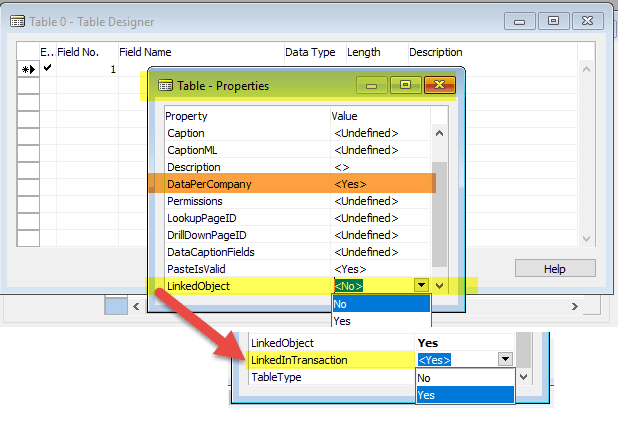
  1. In the table designer, set the LinkedObject property to Yes
  2. List all the fields, exactly in the same order, exactly the way it looks like in your data source
  3. Save the table definition. Give it a name that matches your data source name.
  4. Enjoy.

Details

Ok, there are some details you might want to consider. Especially if you see some exotic error messages after trying the Quickstart points above.

  1. LinkedObject = Yes –> right after that you’ll see a new property, LinkedInTransaction.
  2. So all the fields, even uppercase/lowercase should be appropriate. You never know – maybe you are referring to another database, where the policy is not so strict. Or they want even more.
    • About the data types: make sure you choose data types that fit the contents, Including “Hello World!” in a Code field will lead to problems reading your data.
    • Make sure the field lenghts in your data source match the definition,
    • Do not define flowfields,
    • Pick a primary key. This may or may not be easy. But if you want to process the data (even read it) in a deterministic way, you will want to have a good key. Well, in fact, you want to have the right key.
  3. Save the table definition. Sounds easy.
    • But: in Navision, DataPerCompany = Yes –> you will need the linked object, for example, the view, created for each and every company :)<companyname>$<tablename> is the right format,

      So you may want to set DataPerCompany to No if you want to make sure that your solution works under all circumstances.

  4. Enjoy. There’s not much to say … maybe there’s

Lessons learned: %MYCUSTOMERS, %MYVENDORS, %MYITEMS

Did you ever wonder what this nice user based setting can do – typing in values into the My Items, My Customers, My Vendors table?

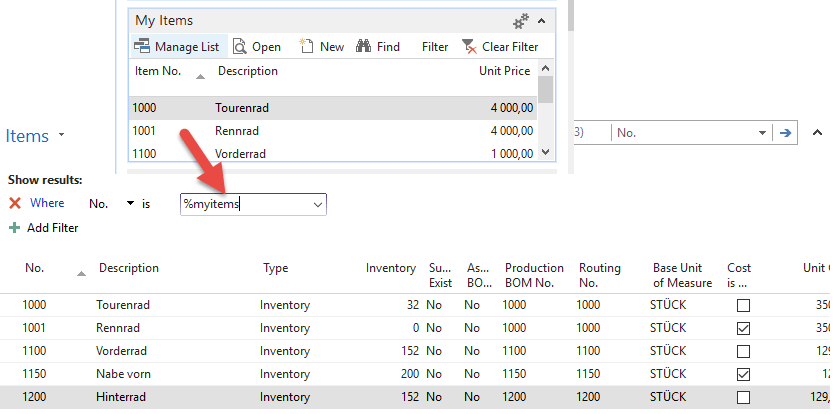
I will be honest: I didn’t know you can use them, I mean really use them. I come from the old school. So I didn’t learn RTC from scratch. But now for some reasons (some = learning) I had to learn, that when you filter in lists like the item, customer, vendor list – you can use these operators:

%MYCUSTOMERS

%MYVENDORS

%MYITEMS

And the result is (like in a Cronus Demo DB with the items):

2016-09-18_13-08-42

(applause)

Welcome, willkommen, lĂ©gy ĂĽdvözölve!

English? Deutsch? Magyar? OK!

hungary united_states germany

I started making friends with Dynamics NAV (Navision) in 2003. Since then, my professional carreer brings me always back to this way of life, thinking, development.

So I decided to back others up with information they may find important, when it comes to using NAV for business.

For me, NAV is “only” a platform, a way of “expressing thoughts” on business processes in an easy-to-use way. I like using AX as well – but I know that it takes 3-4x more time to achieve the same thing and you need more money, patience, and expertise to start “expressing” yourself there.

Looking forward to hearing from you!

FĂĽr die Kollegen aus Deutschland:
ich sitze in Bremen, und wir können uns gerne auf Deutsch auch unterhalten. Freu mich auf Eure Kontaktaufnahme!

A magyar kollégákkal természetesen anyanyelvünkön, magyarul tarthatjuk a kapcsolatot, a legnagyobb örömmel segítek, ha tudok!