LinkedObject – my favourite “interface” tool

It’s an old but very strong feature: you can include in your NAV database a view, a query, even an excel table, and you can refer to / use the data in this data source as if was a table inside NAV. So you can use data:

  • across multiple companies,
  • from external sources,
  • without importing the data

And you can manipulate the data with normal NAV tools, you can access the records of the table (GET, SETRANGE, SETFILTER, FIND, .NEXT…), everything works like a charm.

Yes, you can even notify the underlying data.

Here’s how you do that:

Quickstart

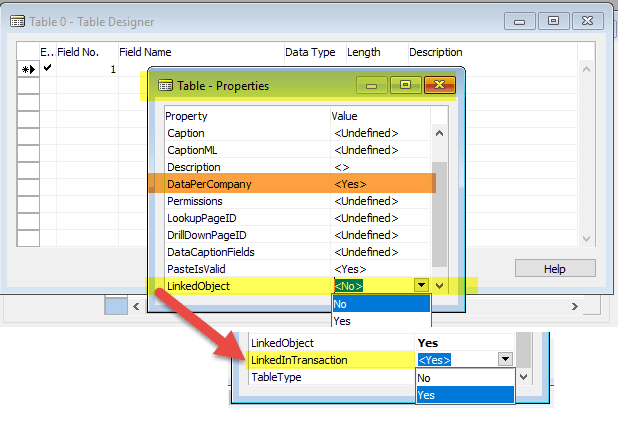
  1. In the table designer, set the LinkedObject property to Yes
  2. List all the fields, exactly in the same order, exactly the way it looks like in your data source
  3. Save the table definition. Give it a name that matches your data source name.
  4. Enjoy.

Details

Ok, there are some details you might want to consider. Especially if you see some exotic error messages after trying the Quickstart points above.

  1. LinkedObject = Yes –> right after that you’ll see a new property, LinkedInTransaction.
  2. So all the fields, even uppercase/lowercase should be appropriate. You never know – maybe you are referring to another database, where the policy is not so strict. Or they want even more.
    • About the data types: make sure you choose data types that fit the contents, Including “Hello World!” in a Code field will lead to problems reading your data.
    • Make sure the field lenghts in your data source match the definition,
    • Do not define flowfields,
    • Pick a primary key. This may or may not be easy. But if you want to process the data (even read it) in a deterministic way, you will want to have a good key. Well, in fact, you want to have the right key.
  3. Save the table definition. Sounds easy.
    • But: in Navision, DataPerCompany = Yes –> you will need the linked object, for example, the view, created for each and every company :)<companyname>$<tablename> is the right format,

      So you may want to set DataPerCompany to No if you want to make sure that your solution works under all circumstances.

  4. Enjoy. There’s not much to say … maybe there’s

Lessons learned: %MYCUSTOMERS, %MYVENDORS, %MYITEMS

Did you ever wonder what this nice user based setting can do – typing in values into the My Items, My Customers, My Vendors table?

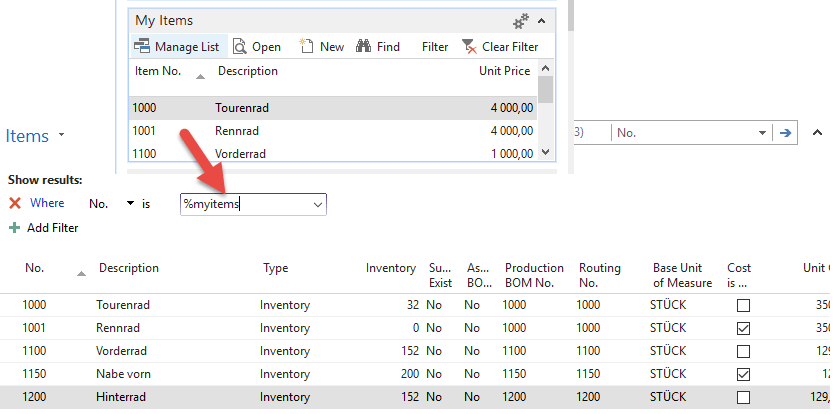
I will be honest: I didn’t know you can use them, I mean really use them. I come from the old school. So I didn’t learn RTC from scratch. But now for some reasons (some = learning) I had to learn, that when you filter in lists like the item, customer, vendor list – you can use these operators:

%MYCUSTOMERS

%MYVENDORS

%MYITEMS

And the result is (like in a Cronus Demo DB with the items):

2016-09-18_13-08-42

(applause)

Welcome, willkommen, légy üdvözölve!

English? Deutsch? Magyar? OK!


hungary united_states germany

I started making friends with Dynamics NAV (Navision) in 2003. Since then, my professional carreer brings me always back to this way of life, thinking, development.

So I decided to back others up with information they may find important, when it comes to using NAV for business.

For me, NAV is “only” a platform, a way of “expressing thoughts” on business processes in an easy-to-use way. I like using AX as well – but I know that it takes 3-4x more time to achieve the same thing and you need more money, patience, and expertise to start “expressing” yourself there.

Looking forward to hearing from you!

Für die Kollegen aus Deutschland:
ich sitze in Bremen, und wir können uns gerne auf Deutsch auch unterhalten. Freu mich auf Eure Kontaktaufnahme!

A magyar kollégákkal természetesen anyanyelvünkön, magyarul tarthatjuk a kapcsolatot, a legnagyobb örömmel segítek, ha tudok!